When you log in to your Megalab account, you can view and access all orders immediately in the order history on the home page. Here you can see various order details and the order status.
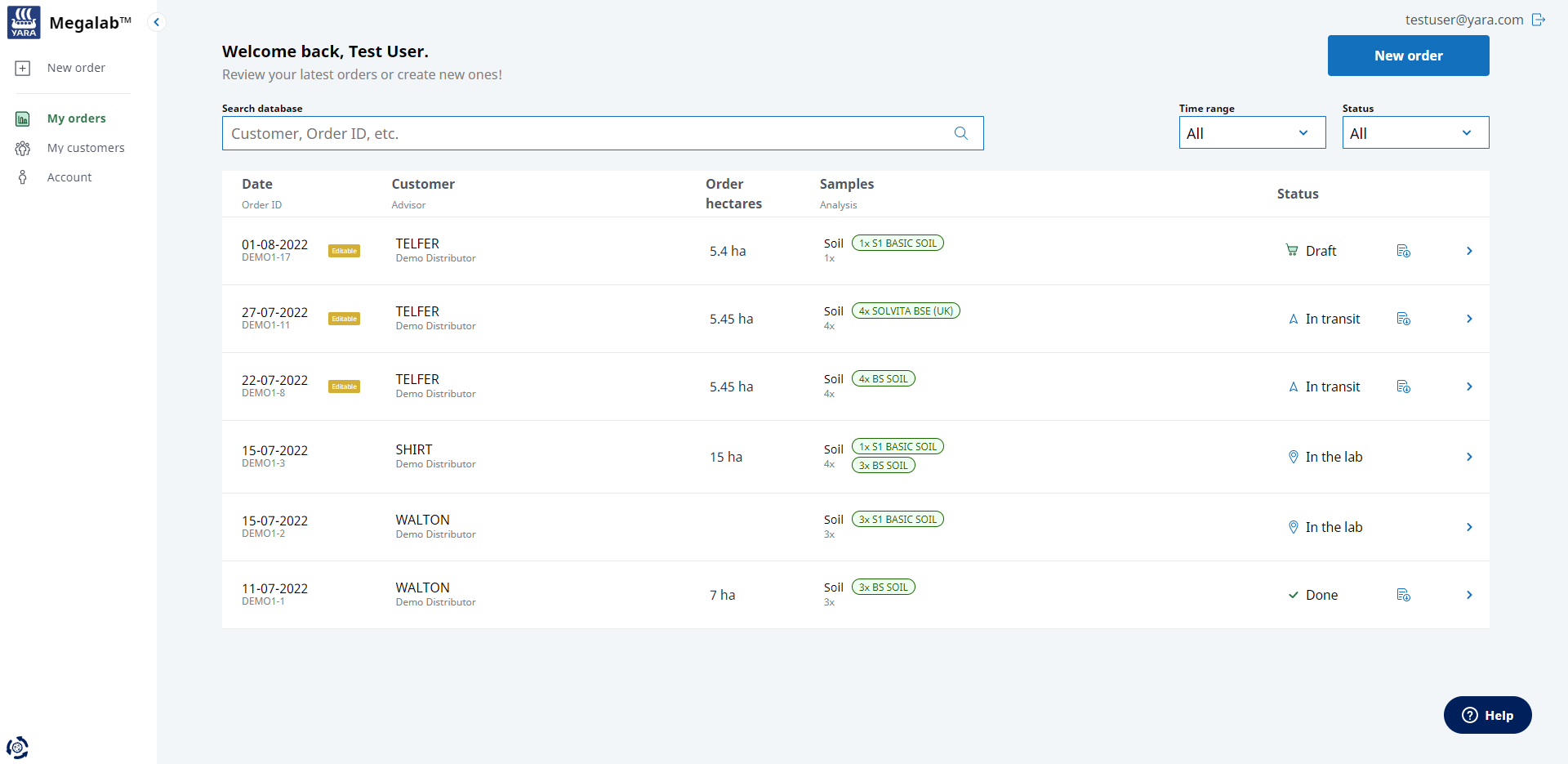
| You can edit or delete orders with the status DRAFT or IN TRANSIT. These orders have a yellow EDITABLE label. |
To access an order and adjust it, proceed as follows:
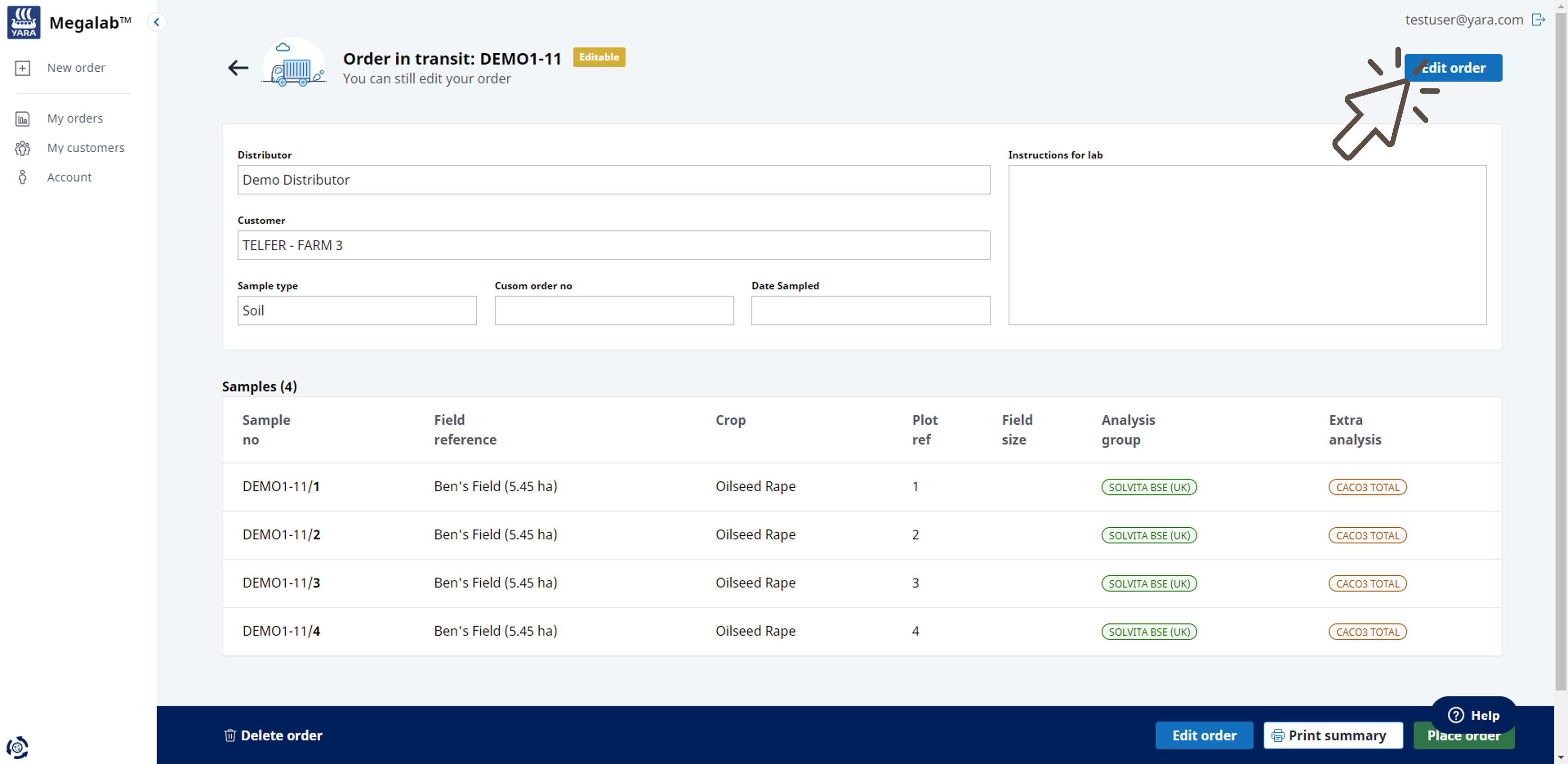
- Click on an order from the orders list to open the order summary.
- The order summary with the order information opens. Click on the EDIT ORDER button.
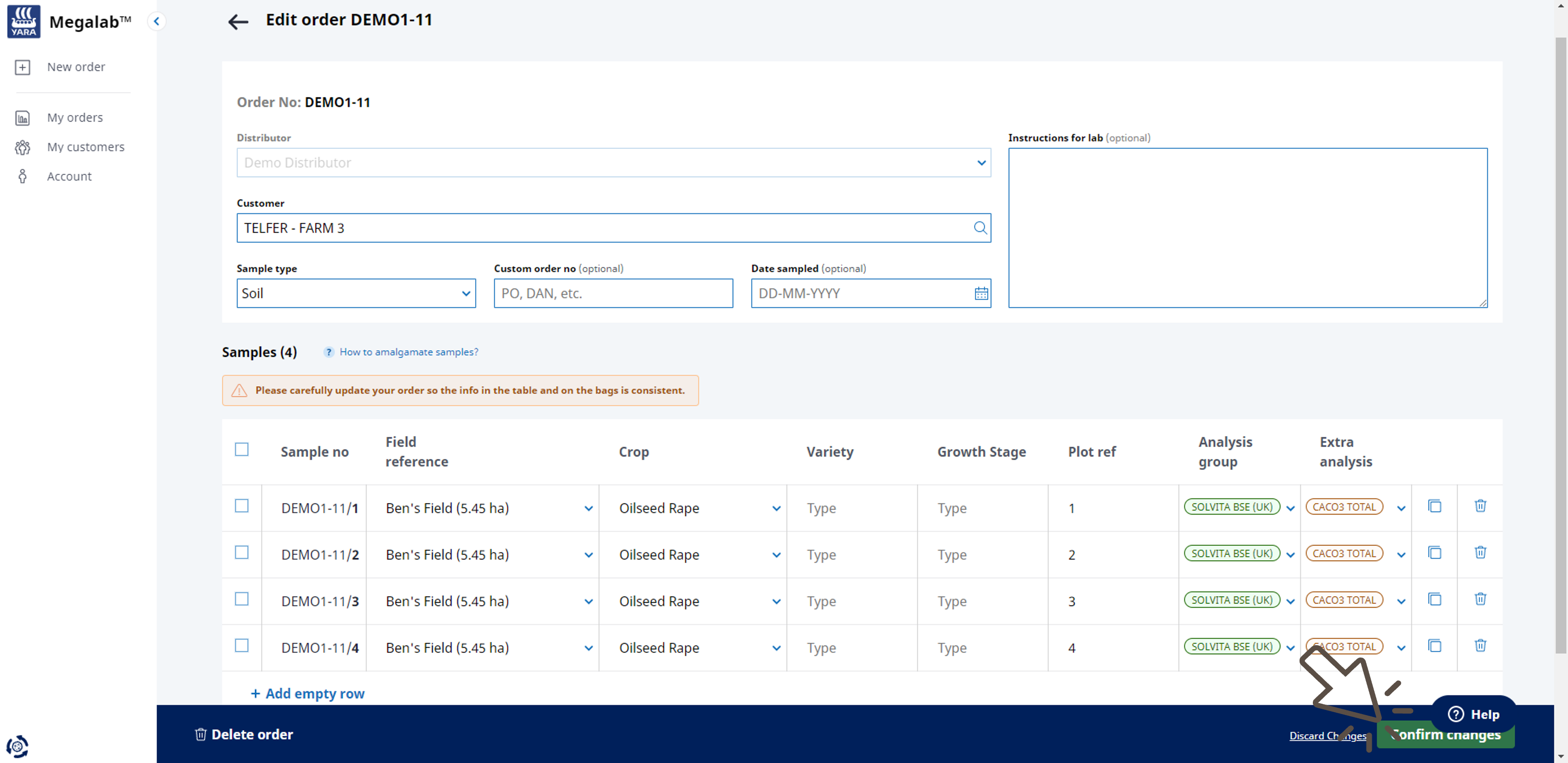
- The order editor opens. Adjust/Add order information and samples as desired. Please carefully update the order so the info in the table and on the sample bags is consistent.
- Click on the CONFIRM CHANGES button to save the changes and update the order. Click on DISCARD CHANGES to end the editing process and close the editor.
Want to delete the order?
Read here how to proceed.
Comments
0 comments
Please sign in to leave a comment.