You can add fields of your customers to Megalab by drawing field boundaries or importing the field boundaries in shapefile (.shp) format.
The following instructions explain how you can draw field boundaries. To upload field boundaries, read here how to do so.
Before you start, please note:
- The minimum field size is 100 m² (0.01 ha). Smaller sizes are not supported due to the satellite data provider.
To draw field boundaries, proceed as follows:
- Log in to your Megalab account.
- Megalab opens. Click on MY CUSTOMERS in the left navigation bar.
- The customers page with the customers list opens. In the column FIELDS you can see how many fields already exist for each customer.
- Click on the customer for which you want to draw the field.
- The customer's page with the fields list opens. Click on the ADD FIELD button.
- The input mask and a map open. Enter the field reference. The field size is automatically filled in after the field boundary is added.
- Locate the field on the map by
- entering town, zip code or address in the search bar, or
- clicking on the location tracking icon next to the search bar to identify your position, or
- zooming into the map using the mouse scroller or the + and - buttons in the lower right corner of the map and moving the map with the left mouse button.
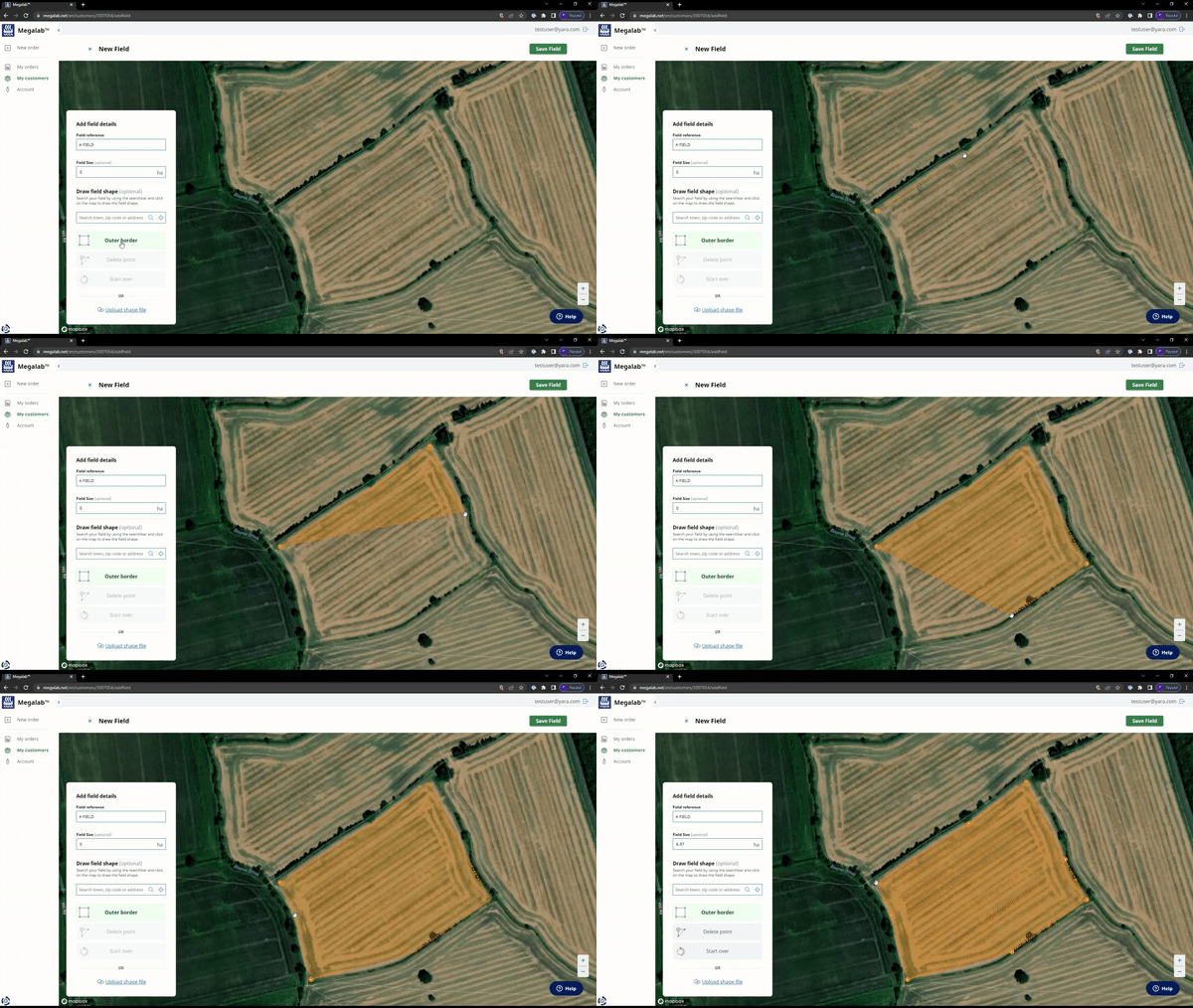
- Select the OUTER BORDER drawing tool to draw the field boundary.
- Start by clicking on one corner of the field to set the first boundary point.
- Continue along the field boundary and keep setting points until you reach the first set point again.
- Adjust the position of the points by holding them and dragging them.
- Select the DELETE POINT drawing tool to delete a boundary point. Click on the point to be deleted.
- Select START OVER to delete the complete field boundary and start over.
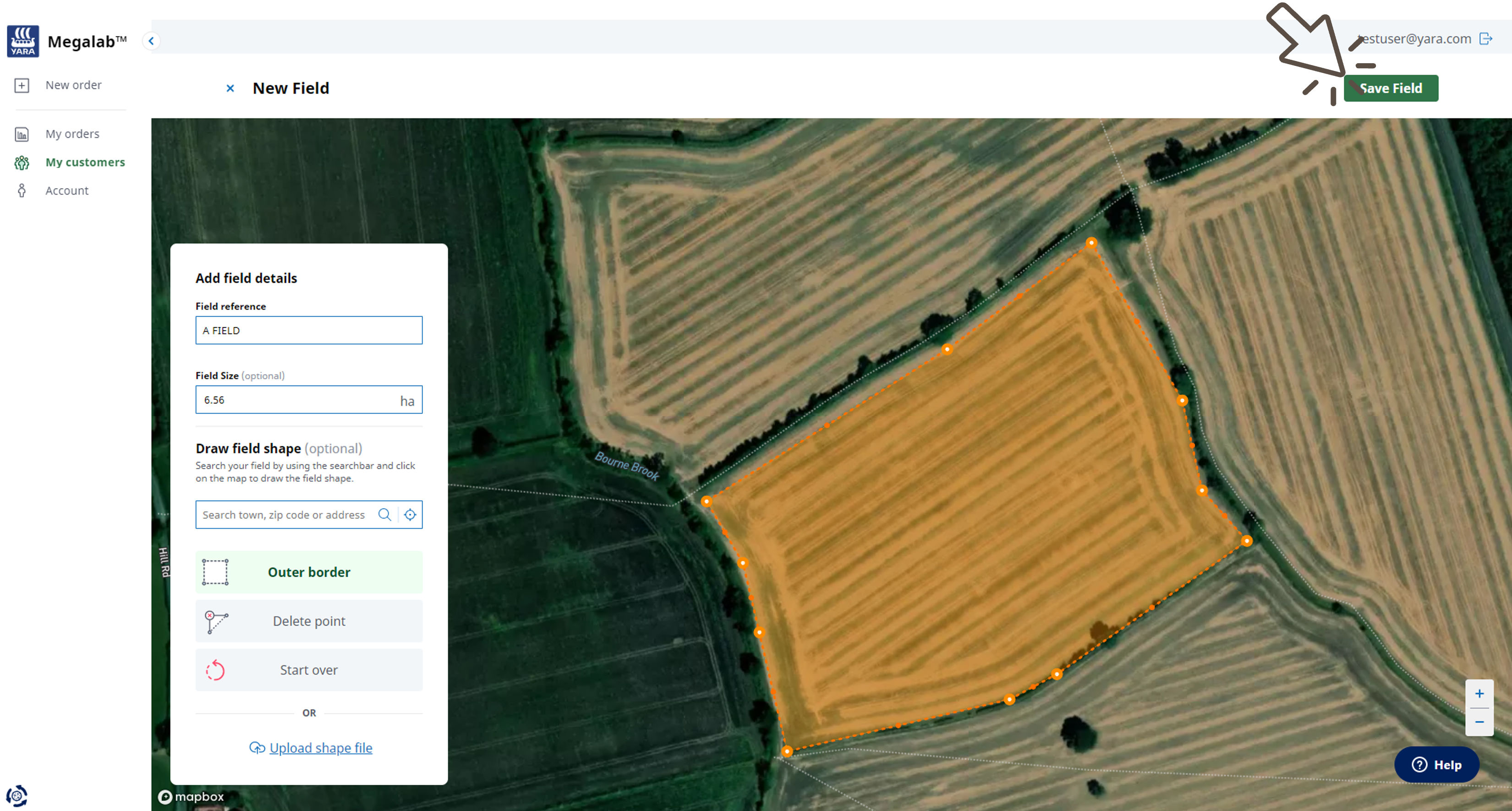
- Click on the SAVE FIELD button when done. Click on the x next to the page title NEW FIELD to cancel the process.
Want to adjust the field?
Read here how to do so.
Comments
0 comments
Please sign in to leave a comment.