You can order an analysis from our Yara Analytical Services in Megalab Web portal by following these steps:
1 | Access the order form
- Log in to your Megalab account.
- Megalab opens. Click on the NEW ORDER button.
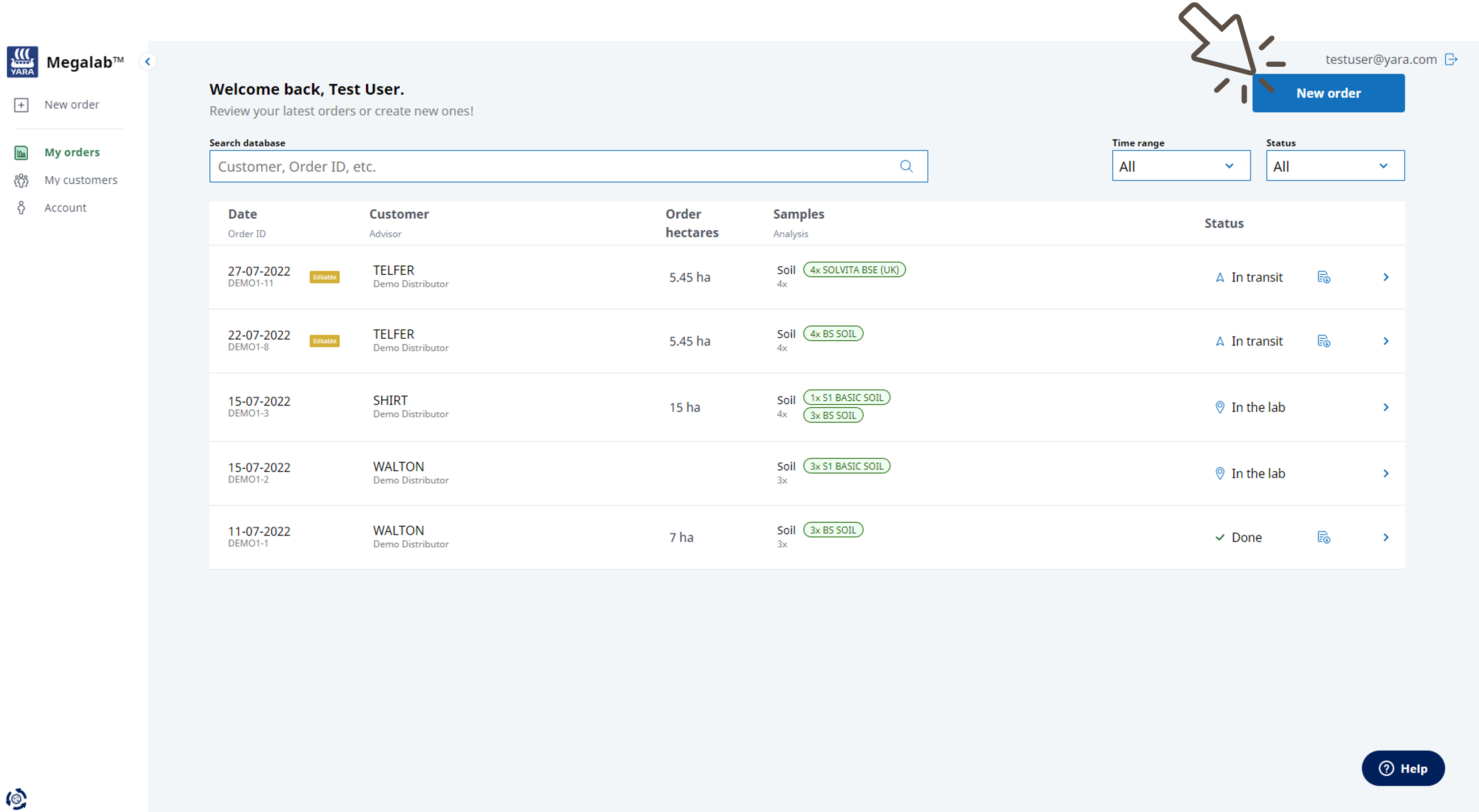
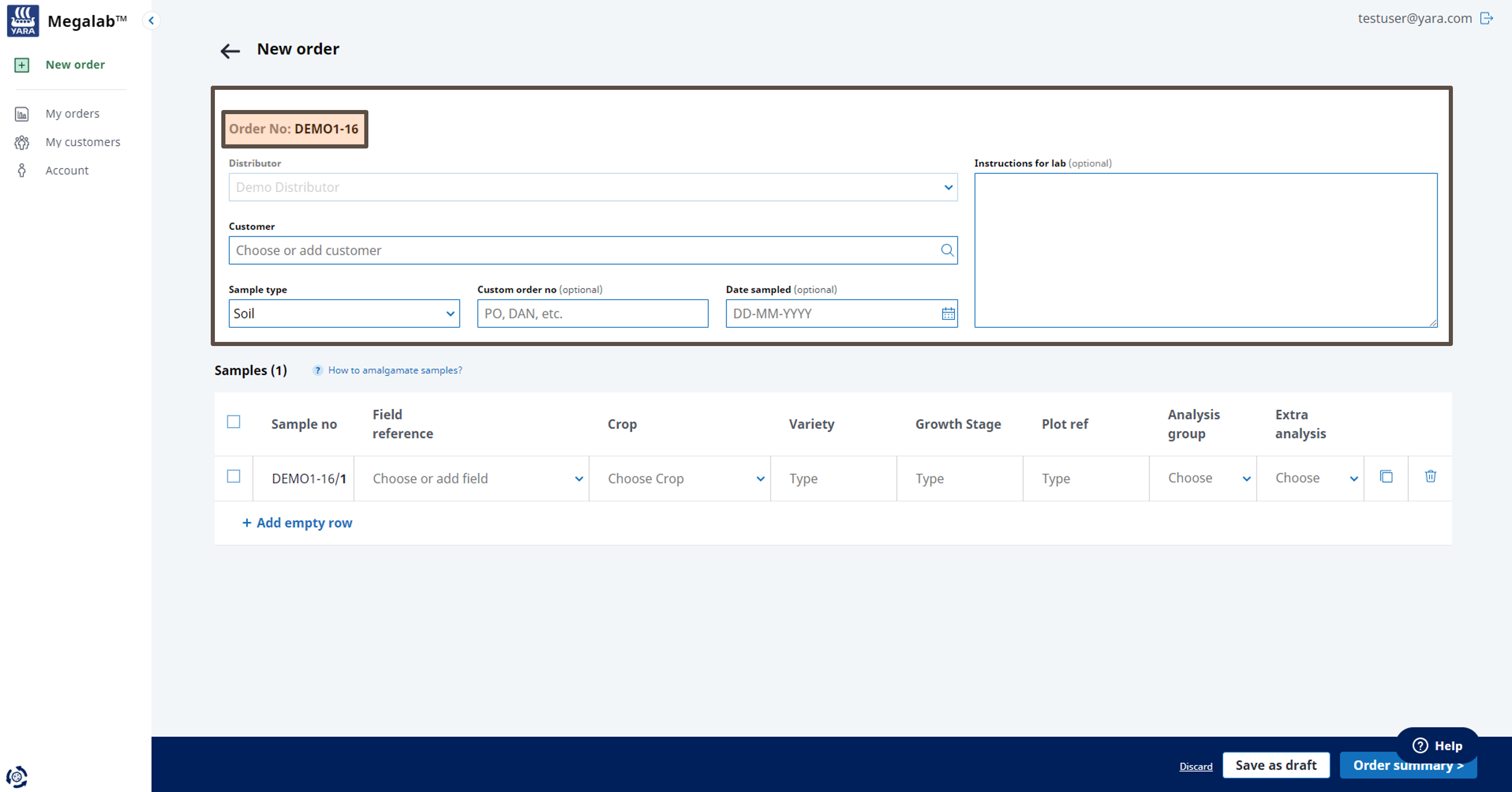
- The order form opens with the order number at the top, the order details below and the sample table at the bottom.
2 | Fill in order information
- If you got more than one account, select the distributor. If you do not, this option is blocked.
- Select the customer for whom you want to conduct the analysis, or add a new customer. A customer is pre-populated of all samples existing according to previous orders.
- Select the sample type. Read here which sample types can be selected.
- Optionally, enter a custom order number, the date sampled and instructions for our lab.
3 | Select and add samples
Each sample gets a sample number which is a unique identifier consisting of 4 characters. For each order, the sample number will start with your reference number.
Please note the sample number on the sample bags before sending the samples to our lab so that we can identify the order to which the results are to be uploaded.
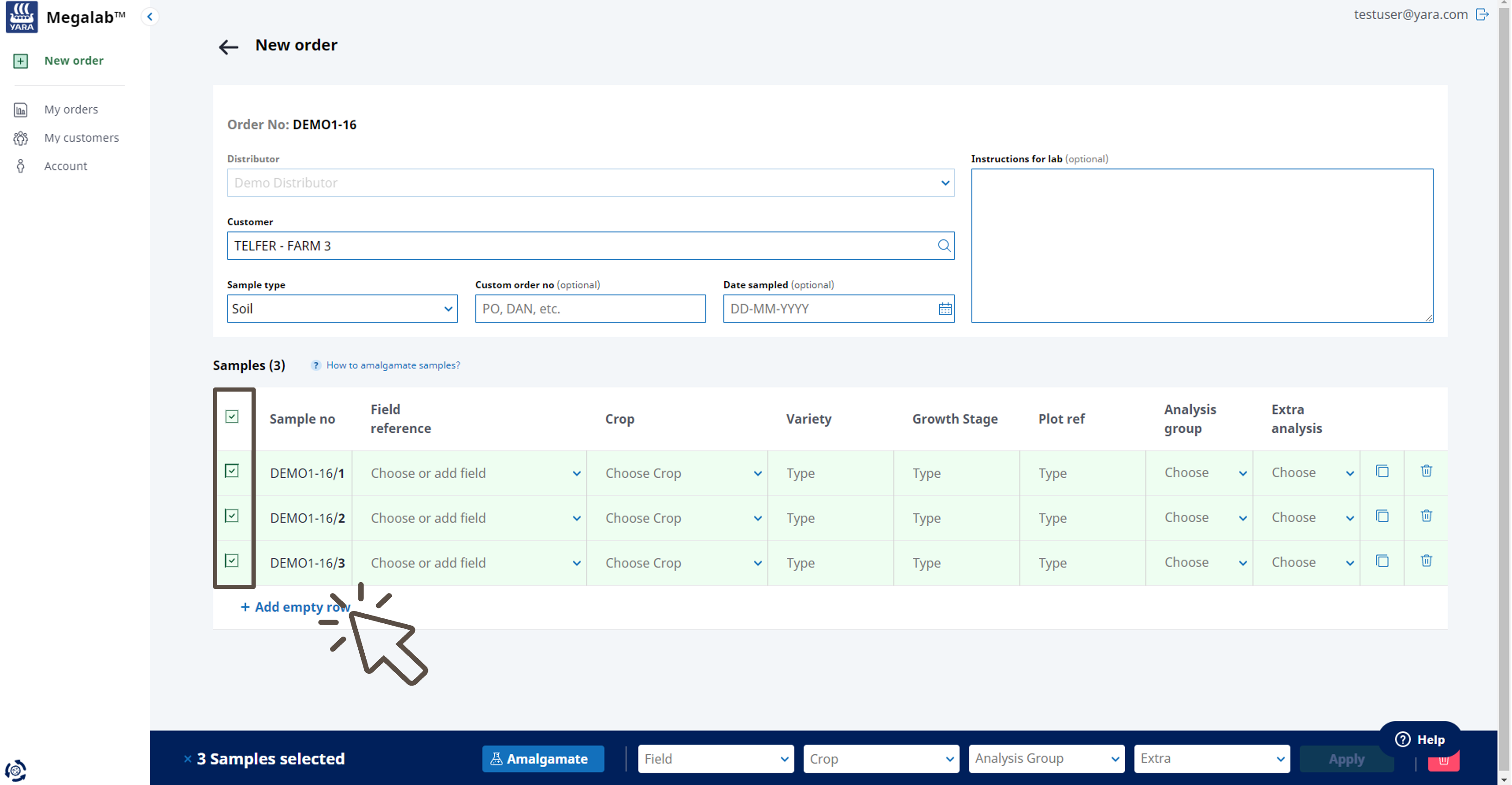
- In the table at the bottom of the order form, tick the samples you want to submit to our lab.
- Click on ADD EMPTY ROW to add more samples.
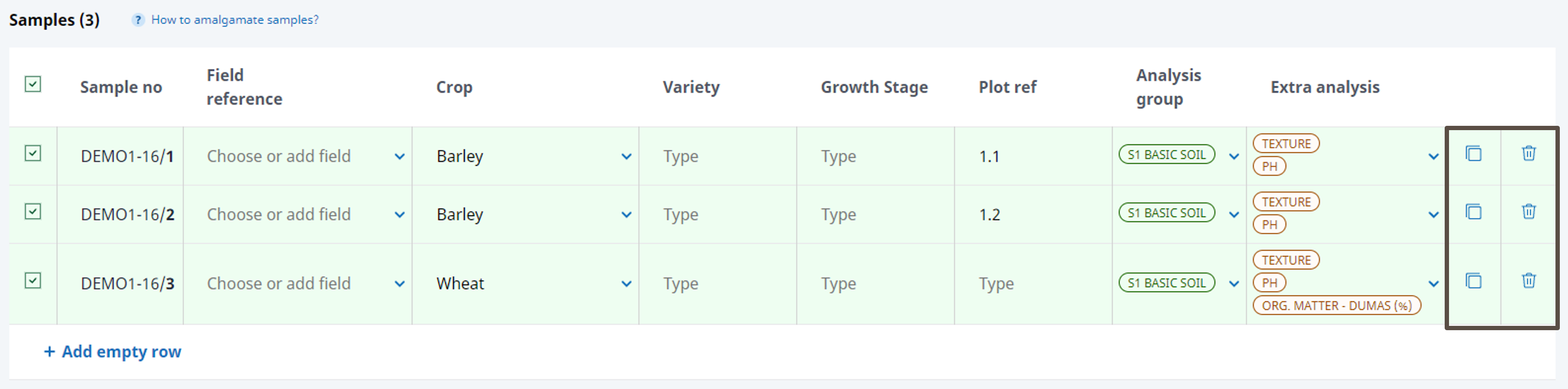
- To copy a sample, click on the copy symbol in the row of the sample. To delete a sample, click on the bin symbol.
4 | Add sample inputs and amalgamate samples
Add sample inputs
For each sample, insert inputs in the columns by clicking on them and selecting from the menu.
The requested sample inputs adjust based on the sample type you selected. In general, you will be ask for field reference, crop and variety, and growth stage. Furthermore, enter the plot reference for each sample. The plot reference is referring to the location of the plot on a field, for example, top or bottom.
Select which analyses and extra analyses we should run on each sample. Read here which analyses can be ordered.
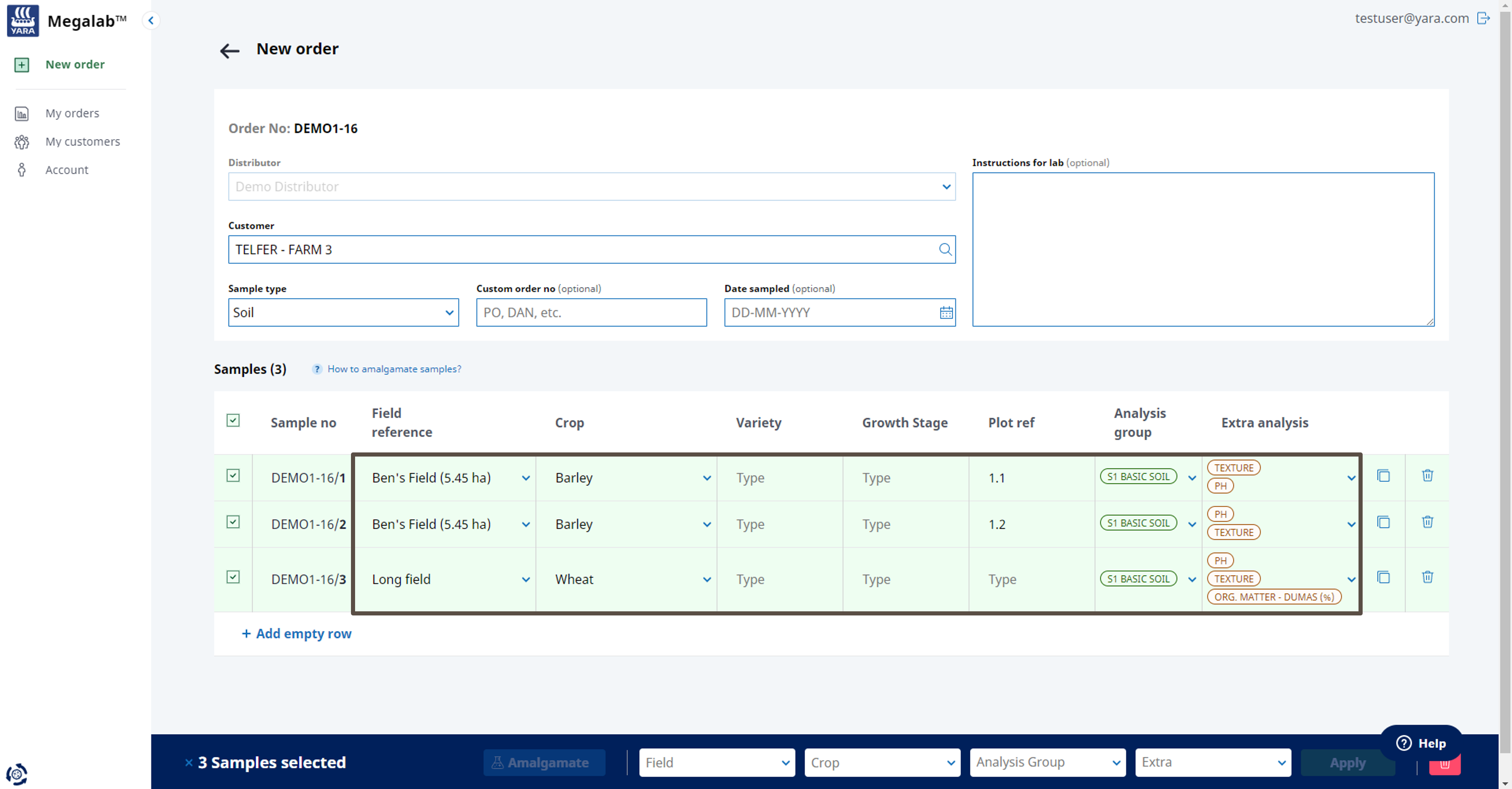
Perform a bulk action
If you have several samples with the same information, you can save time by assigning them the same information in a bulk action.
To do so, follow these steps:
- Select the samples by ticking the box next to the sample row.
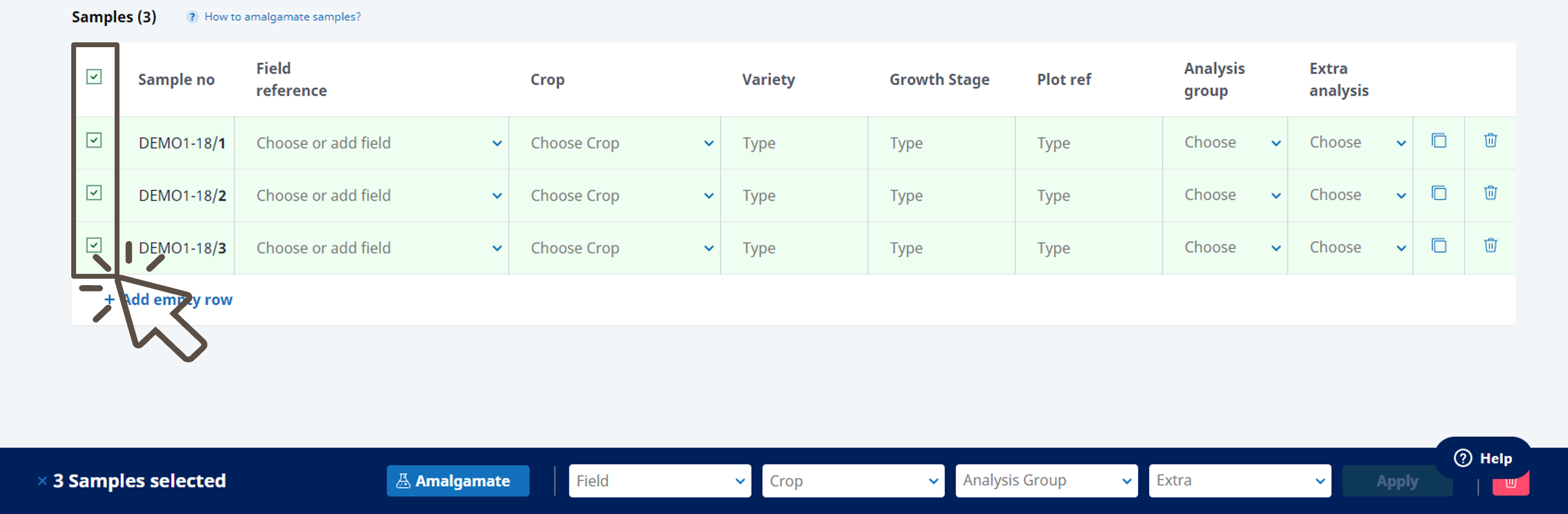
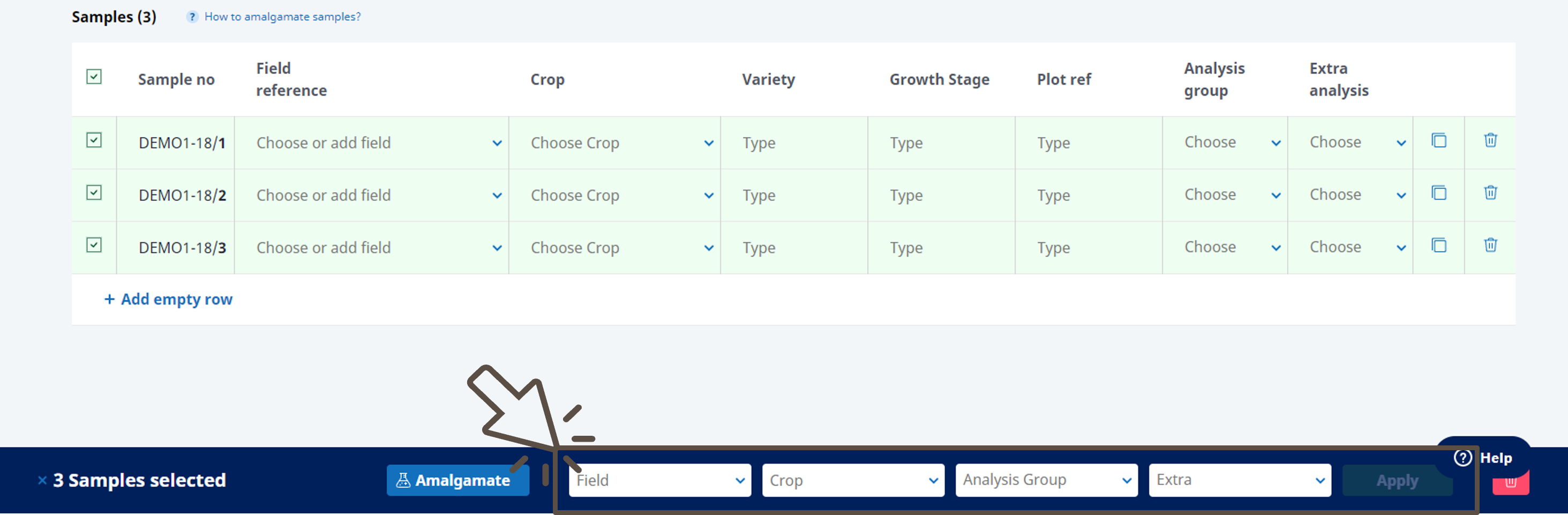
- At the bottom of the page, a blue bar opens. Select inputs such as field, crop and analysis from the drop-down menus.
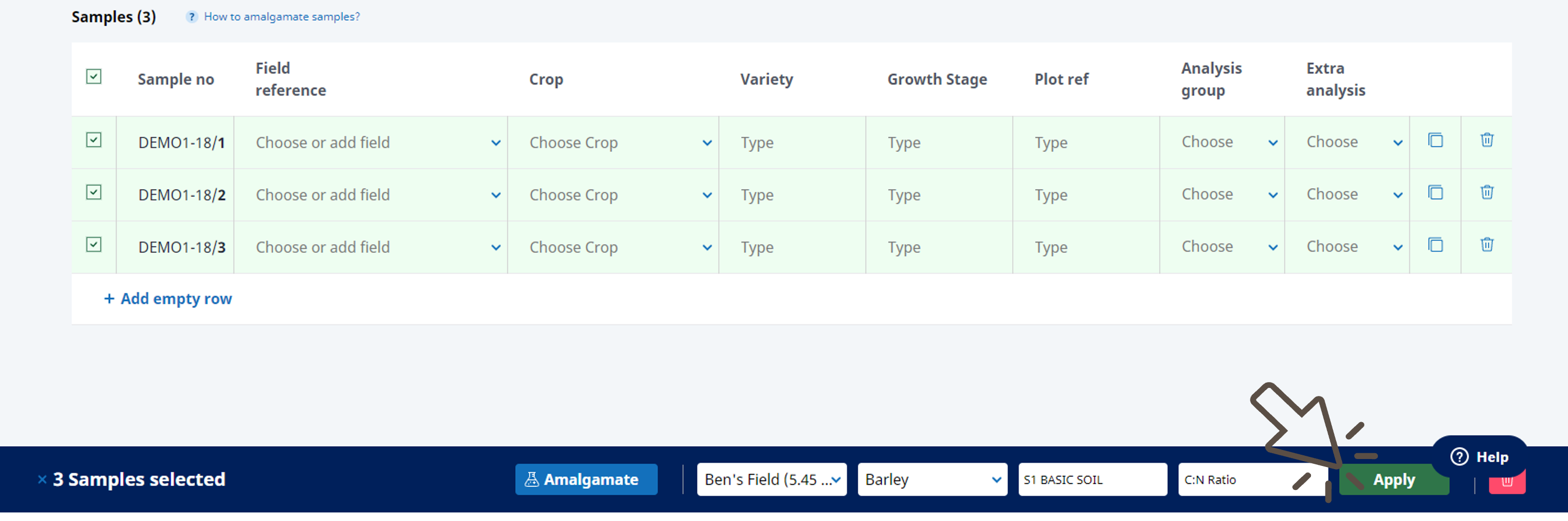
- Click on the APPLY button to assign the selected information to the samples in the columns.
Amalgamate samples
If you want to get an analysis from a mix of samples, you can add an amalgamation of several samples to the order.
This is how you do it:
- Select the samples by ticking the box next to the sample row.
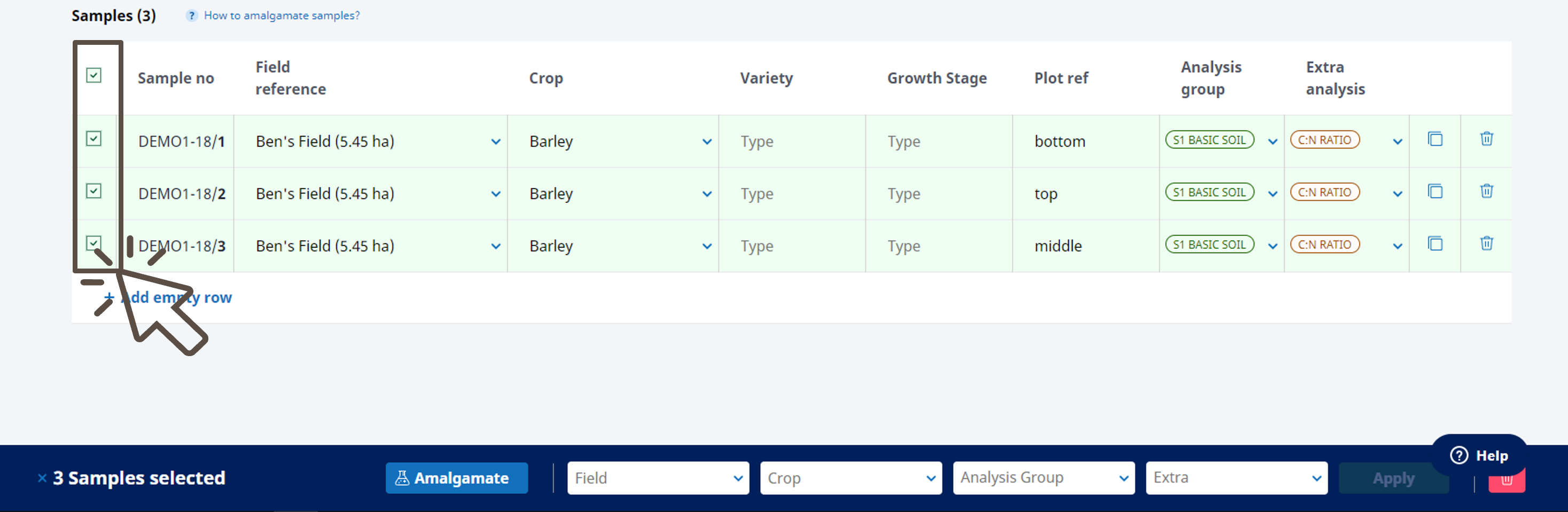
- At the bottom of the page, a blue bar opens. Click on the AMALGAMATE button to amalgamate the selected samples.
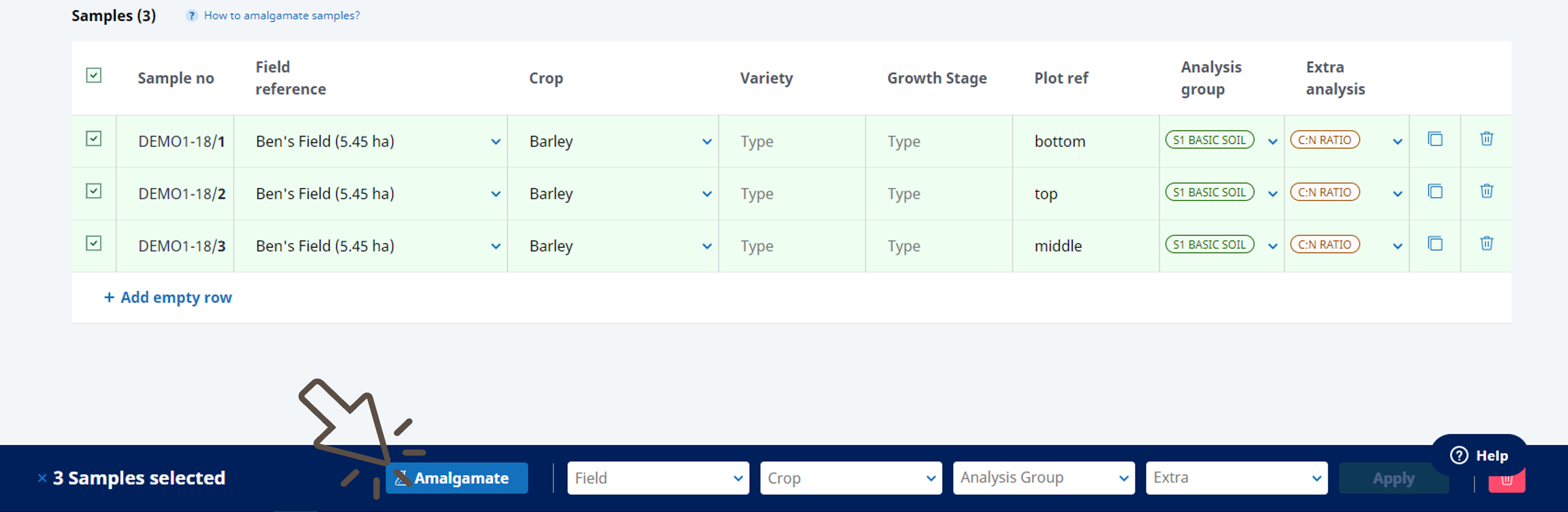
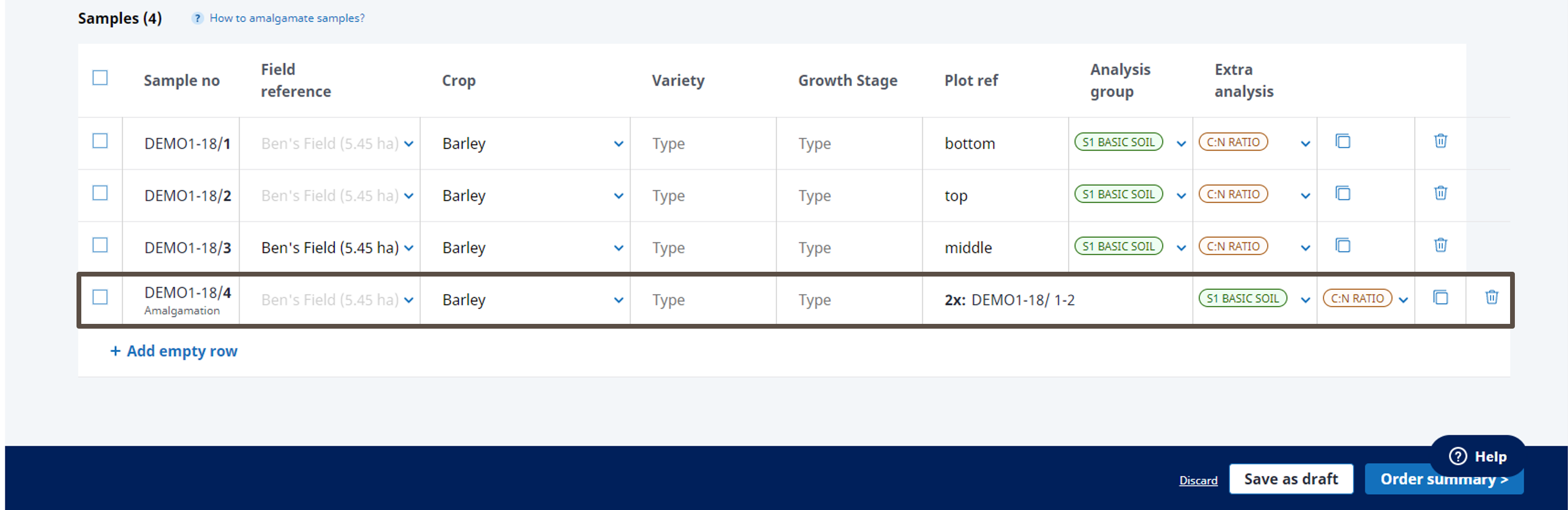
- An amalgamation of the selected samples with merged plot reference data will be added to the table.
5 | Save, check and place the order
- Click on the ORDER SUMMARY button to access the summary page.
- If you do not want to order right away, but want to save the order for later, click on the SAVE AS DRAFT button. You can find the order draft under MY ORDERS.
- Click on DISCARD to stop the ordering process and discard all entries.
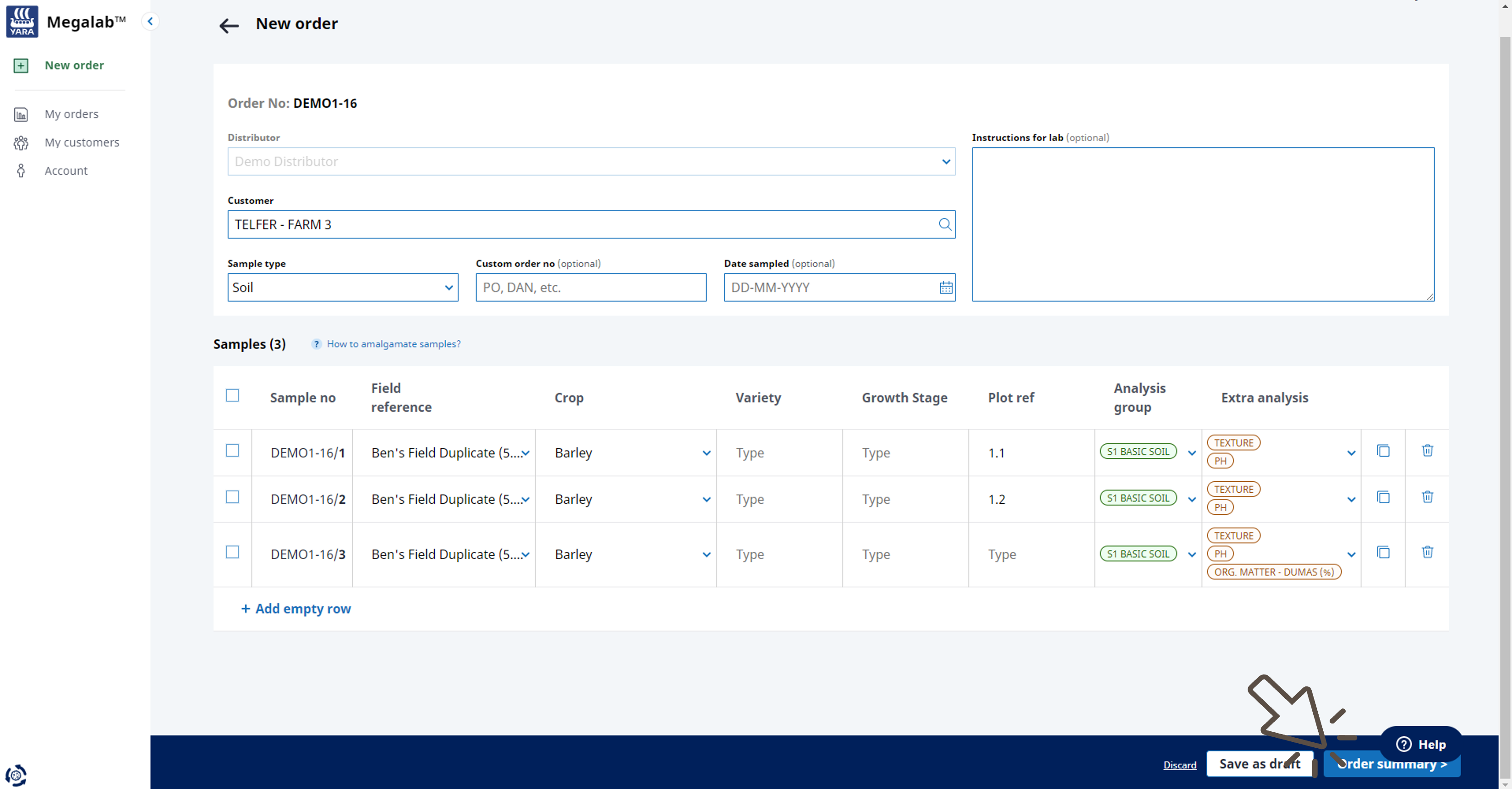
- The order summary opens. Check the entered information in the order summary.
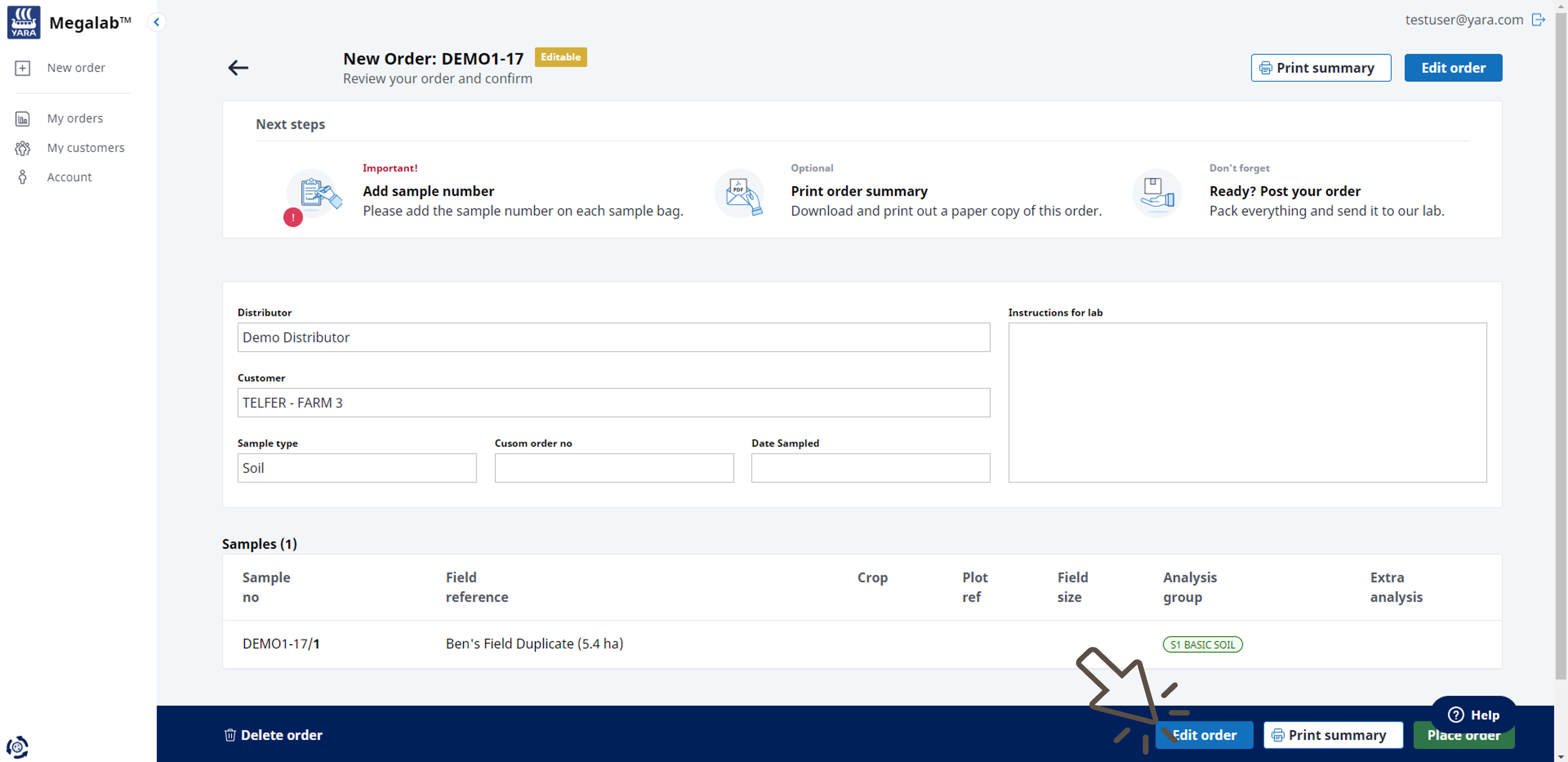
- To edit the order, click on the EDIT ORDER button.
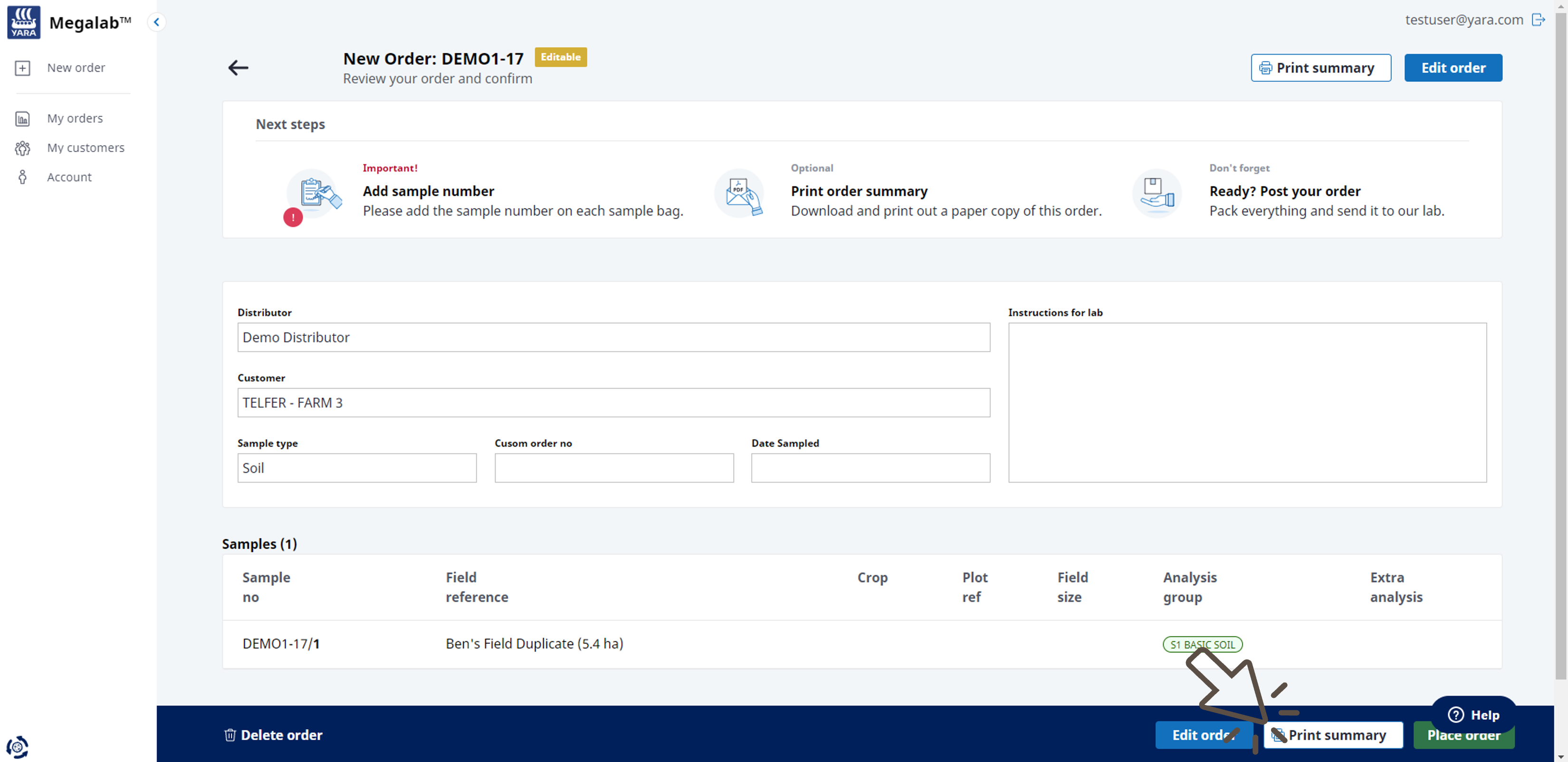
- To download and print a copy of the order summary, click on the PRINT SUMMARY button. Please enclose a copy of the order summary with your sample shipment to our lab.
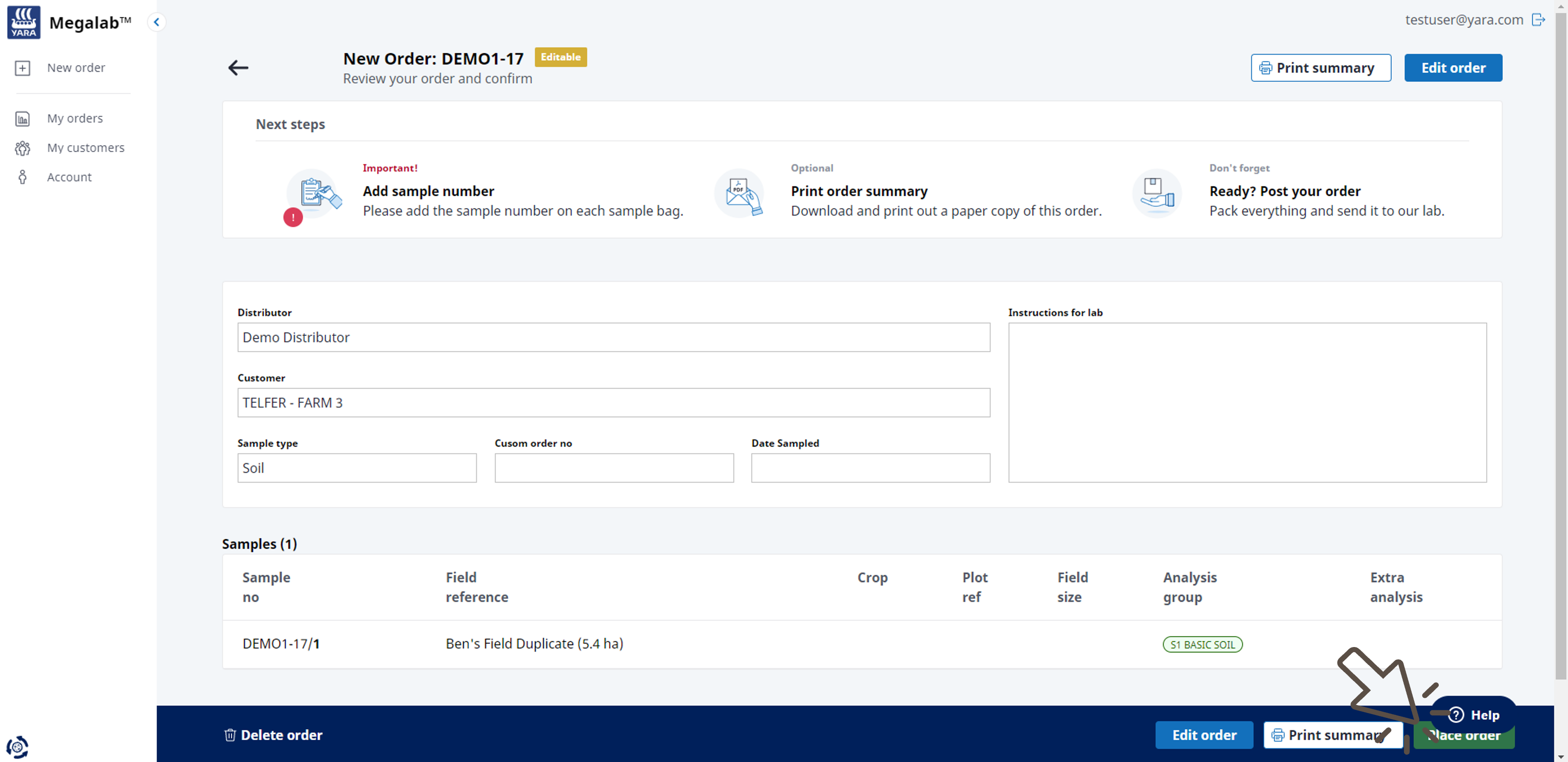
- When you are ready to place the order, click on the PLACE ORDER button.
Want to adjust your placed order?
Read here how to edit an order.
6 | Collect and send samples
Your order has been placed. Now it is time to take the samples and send them to our lab for the analysis. Please read this article to learn how to take good samples and how to label them correctly.
Comments
0 comments
Please sign in to leave a comment.